
Import & Export
LibrisLog provides multiple ways to get data in and out of the system, ensuring your library is always portable.
Book Import
Search Import
The most common way to add books is by searching external sources:
- Click "Add Book" in the library
- Enter a title, author, or ISBN in the search box
- The app queries:
- Select a result to import with full metadata and cover
ISBN Barcode Scan
On mobile devices:
- Tap the scan button in the import dialog
- Point the camera at an ISBN barcode
- The app detects the barcode and searches automatically
Manual Entry
If no search results are found, enter book details manually. All fields are optional except title.
Data Export
Export your entire library or subsets of data:
Export Formats
| Format | Description |
|---|---|
| JSON | Complete data with all metadata and relationships |
| CSV | Tabular format, one row per book |
| ZIP | Combined JSON + cover images |
Export Datasets
Choose which data to include:
- Books (full metadata)
- Reading progress entries
- Tags
- Cover images
Export Process
- Go to the Data page
- Select datasets and format
- Click Export
- Download the generated file
Data Import
Import data from external sources:
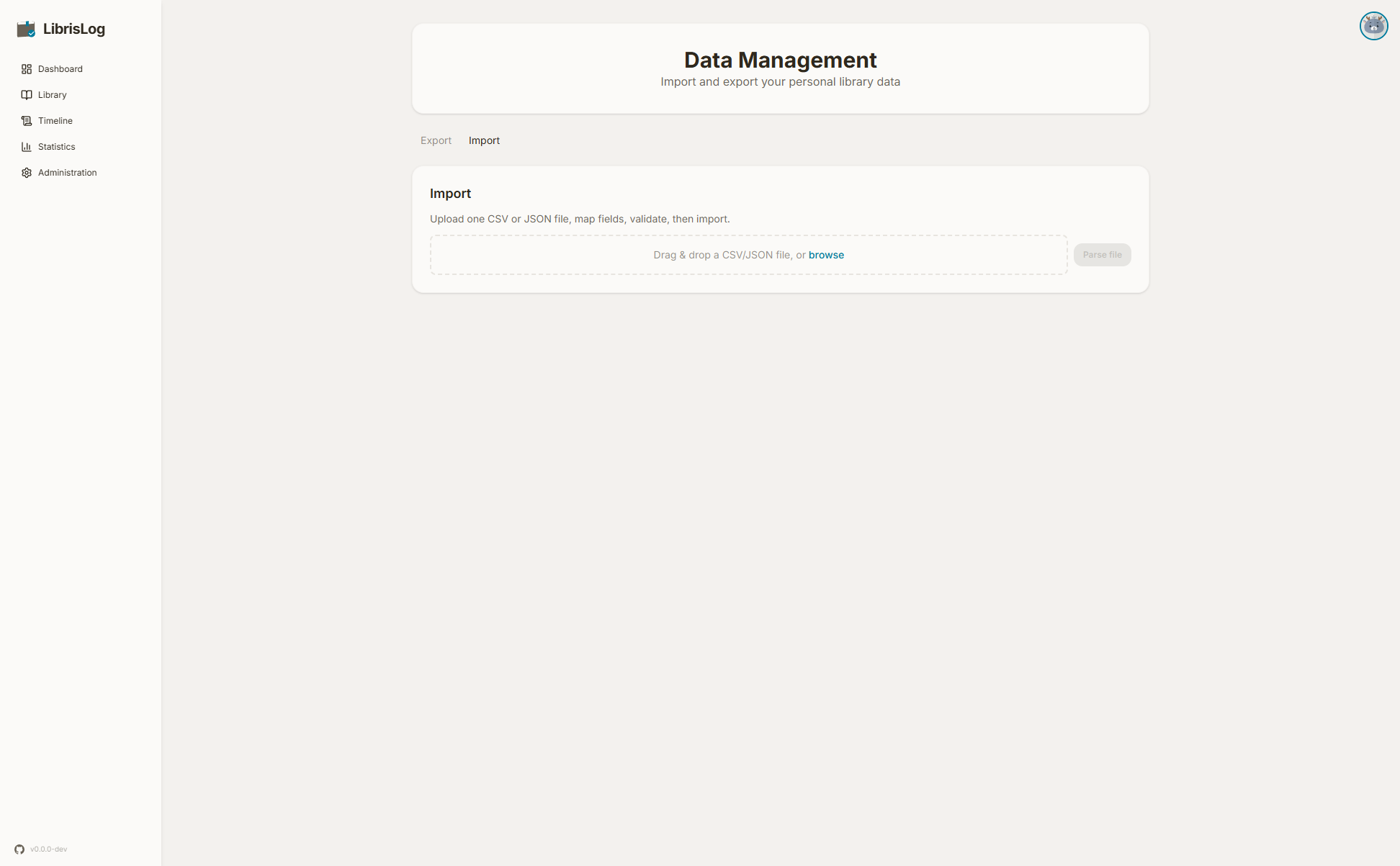
Supported Formats
- JSON — LibrisLog export format
- CSV — Custom field mapping supported
Field Mapping
When importing CSV, map source columns to LibrisLog fields:
- Source field dropdown shows all columns from the CSV
- Target field shows available LibrisLog properties
- Optional transform expressions (Python) for data conversion
Transform DSL
Per-field Python expressions allow data transformation:
# Examples:
value.upper()              # Convert to uppercase
str(int(value))            # Convert to integer then back to string
"https://example.com/" + value  # Prefix a URL
Available variables:
value— The field valuerow— The entire row as a dictionarycontext— Import context (not commonly used)
Predefined Mappings
Common import formats have predefined mappings:
- Goodreads Export — Maps Goodreads CSV columns automatically
Validation
Before importing:
- Parse and preview the data
- Review transformed rows
- Check for errors
- Validate the full dataset
The import process shows progress with a count of imported and failed rows.
Backup & Restore
Backup and restore are admin-only features. See Administration for details.
API Access
For programmatic import/export, use the REST API. See the API documentation for details.