
Missing Covers Workflow
The Missing Covers page provides a streamlined, one-book-at-a-time workflow for assigning book covers to books missing them. It's accessible from Profile → Manage my data → Manage Missing Covers.
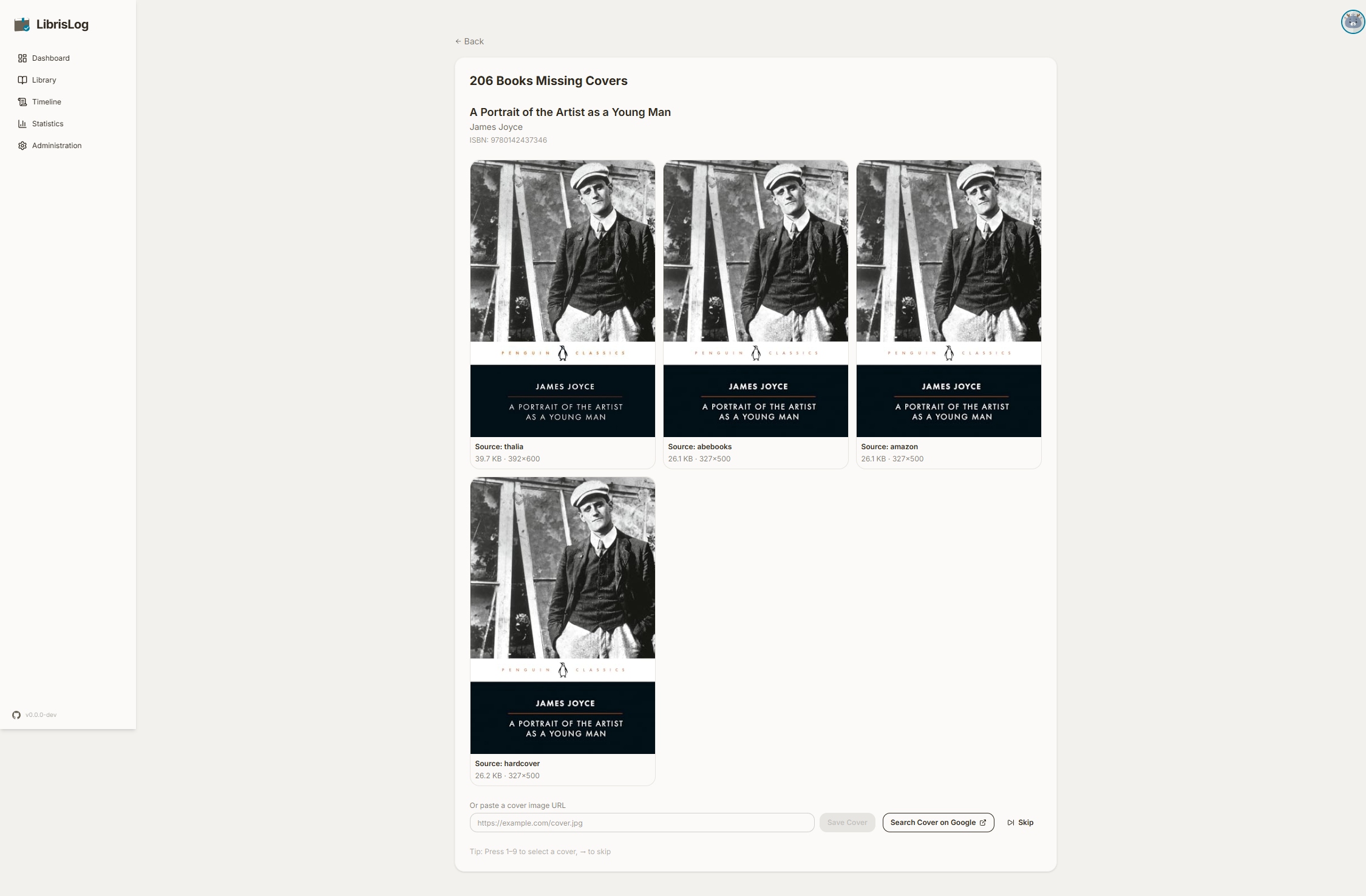
Workflow
The page shows one book at a time along with auto-searched cover candidates and manual options.
Cover Candidates
If the book has an ISBN, the page automatically searches multiple cover sources (AbeBooks, Open Library, Amazon, Hardcover) and displays results in a resolution-sorted grid. Click a candidate to save it as the book's cover — the app downloads the image, stores it locally, and immediately advances to the next book.
No ISBN or No Candidates
If the book has no ISBN or no cover candidates were found, the page shows:
- Search Cover on Google — opens a Google image search for the book in a new tab
- Manual URL input — paste a direct image URL and click Save Cover
Skip
Click Skip to move past the current book without saving a cover. Skipped books remain in the missing-covers count.
Keyboard Shortcuts
| Key | Action |
|---|---|
1–9 | Select the N-th cover candidate |
→ (Arrow Right) | Skip current book |
All Done
When all missing covers have been assigned, a success message is shown with a link back to the library.
Difference from Data Hygiene
| Aspect | Data Hygiene | Missing Covers |
|---|---|---|
| Scope | Any missing metadata (author, ISBN, cover, etc.) | Covers only |
| Interaction model | Table with checkboxes, batch updates | One book at a time, immediate save |
| Auto-suggestions | None | Auto-searches cover candidates by ISBN |
| Speed optimization | Paginated list (50/page) | Prefetch next book + candidates; keyboard shortcuts |
| Entry point | Profile → Data Hygiene | Profile → Manage Missing Covers |
| Success feedback | Batch toast | Per-book toast + auto-advance |