Library
The library is the heart of LibrisLog. It organizes your books into four reading statuses and provides tools for managing your collection.
Reading Statuses
Books are categorized into four statuses:
| Status | Description |
|---|---|
| Want to Read | Books you plan to read |
| Currently Reading | Books you're actively reading |
| Read | Books you've finished |
| Did Not Finish | Books you started but abandoned |
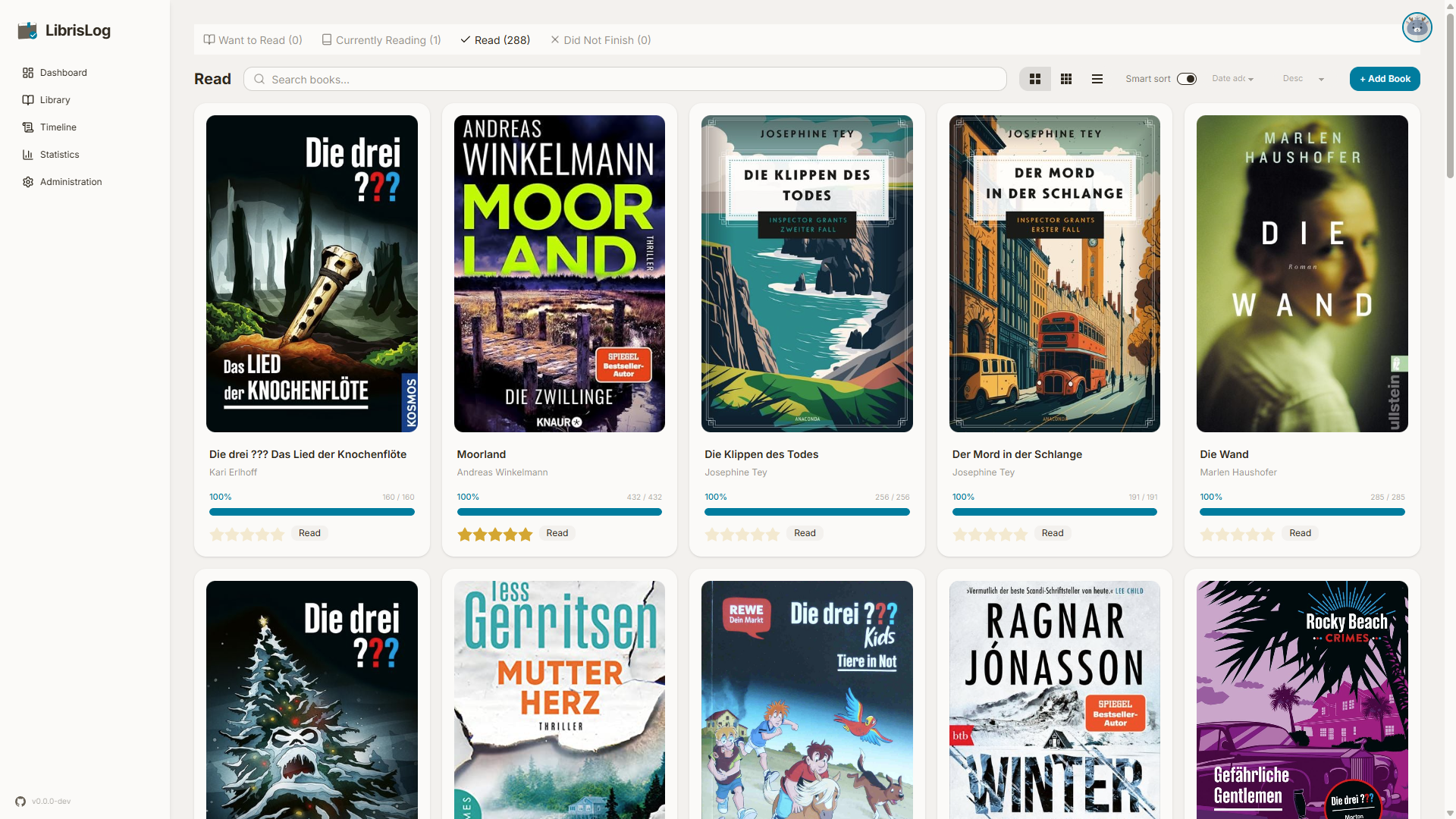
Each status has its own tab in the library view, making it easy to browse your collection by reading state.
Navigation
- Switch between tabs using the bottom navigation bar on mobile or the sidebar on desktop
- Books are displayed as cards with cover images, titles, and authors
- Click any book to open the detail view
Book Cards
Each book card shows:
- Cover image (or placeholder if no cover)
- Title and author
- Current reading progress (for "Currently Reading" books)
- Star rating (for "Read" books)
Detail View
Clicking a book opens the detail dialog/drawer showing:
- Full cover image
- Complete metadata (title, subtitle, author, ISBN, publisher, year, pages, language)
- Reading status badge
- Star rating (clickable to change)
- Reading progress slider (for books with page count)
- Tags
- Notes
- Blurb/description with expand/collapse
- Action buttons: Edit, Delete
Adding Books
Manual Entry
Use the "Add Book" button to manually enter book details. Fill in title, author, and optional fields like ISBN, publisher, page count, etc.
Import Search
Search external sources for book metadata:
- Open Library — Free, no API key required
- Google Books — Requires API key (set in
.env) - Hardcover.app — Requires API token (set in
.env)
The search automatically tries Open Library first, then falls back to other sources. For ISBN searches, all available sources are queried in parallel.
ISBN Barcode Scan
On mobile devices, use the camera to scan ISBN barcodes. The app uses the device's camera with real-time barcode detection to quickly look up books.
Editing Books
Click the "Edit" button in the detail view to modify any book property. Changes are saved immediately.
Covers
Automatic Cover Search
When adding a book, the app automatically searches for cover images from:
- AbeBooks
- Open Library
- Amazon
- Hardcover
Cover Picker
If automatic search doesn't find a suitable cover, you can:
- Upload an image file
- Paste an image URL
- Trigger a manual cover search
Cover Caching
Downloaded covers are cached locally in the COVERS_DIR directory to avoid repeated external requests.
Search
- Search books by title, author, or tags using the search bar — the result count updates as you type
- Press Enter to open the dedicated search results page with a full results grid, load-more pagination, and the same book detail interaction as the library
- From any page, navigate directly to
/search?q=your+queryfor quick access
Sort
- Sort by title, date added, date started, date finished, or rating
- Sort order: ascending or descending
View Modes
Switch between grid view (cover-focused) and list view (compact) using the view toggle.