Progress Tracking
Track your reading progress with page-level granularity. Each update is recorded in a log, giving you a complete history of your reading journey.
Updating Progress
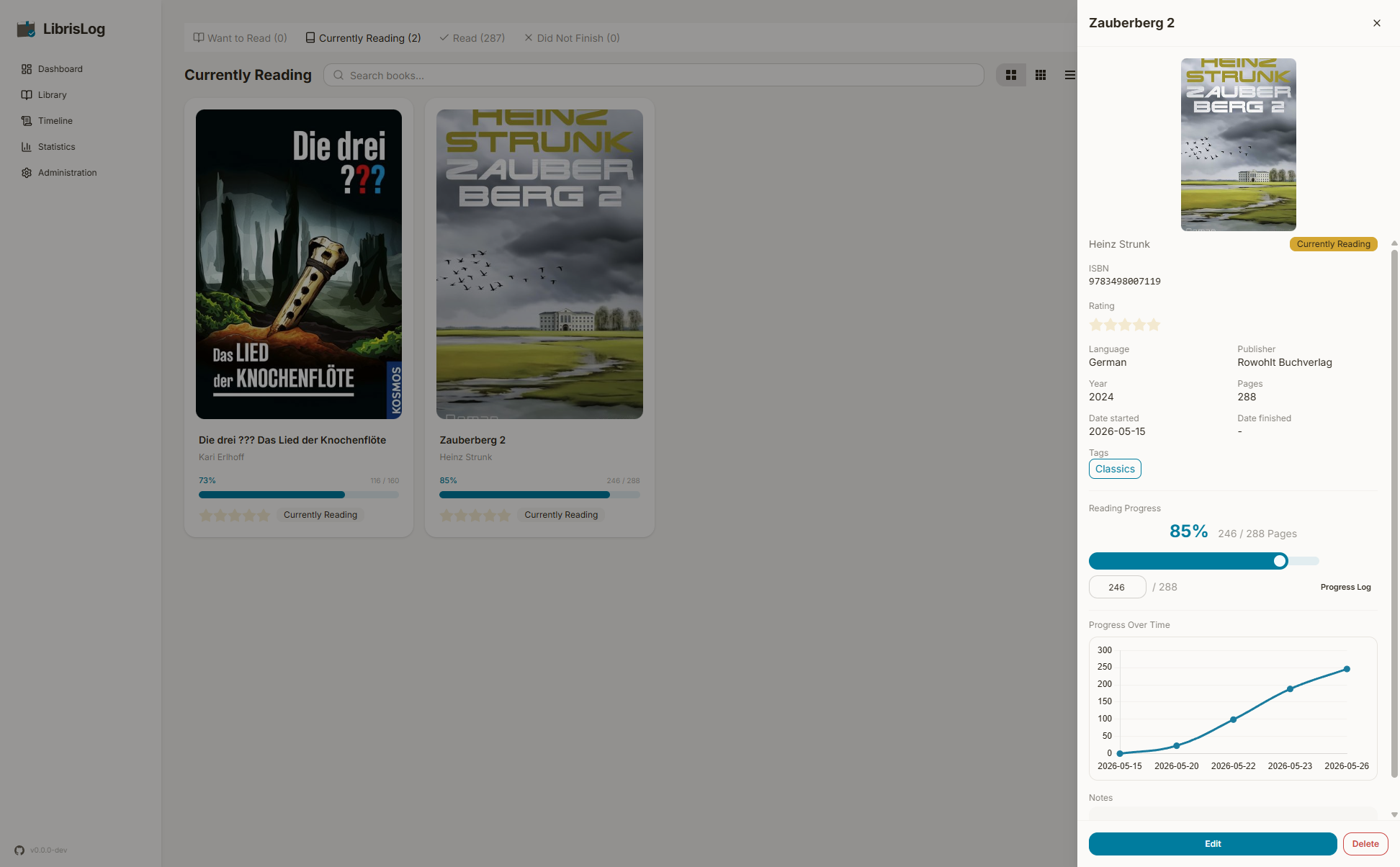
For books with a page count, open the book detail view and drag the progress slider or type the current page number. Progress is saved automatically when you release the slider or blur the input.
Progress Log
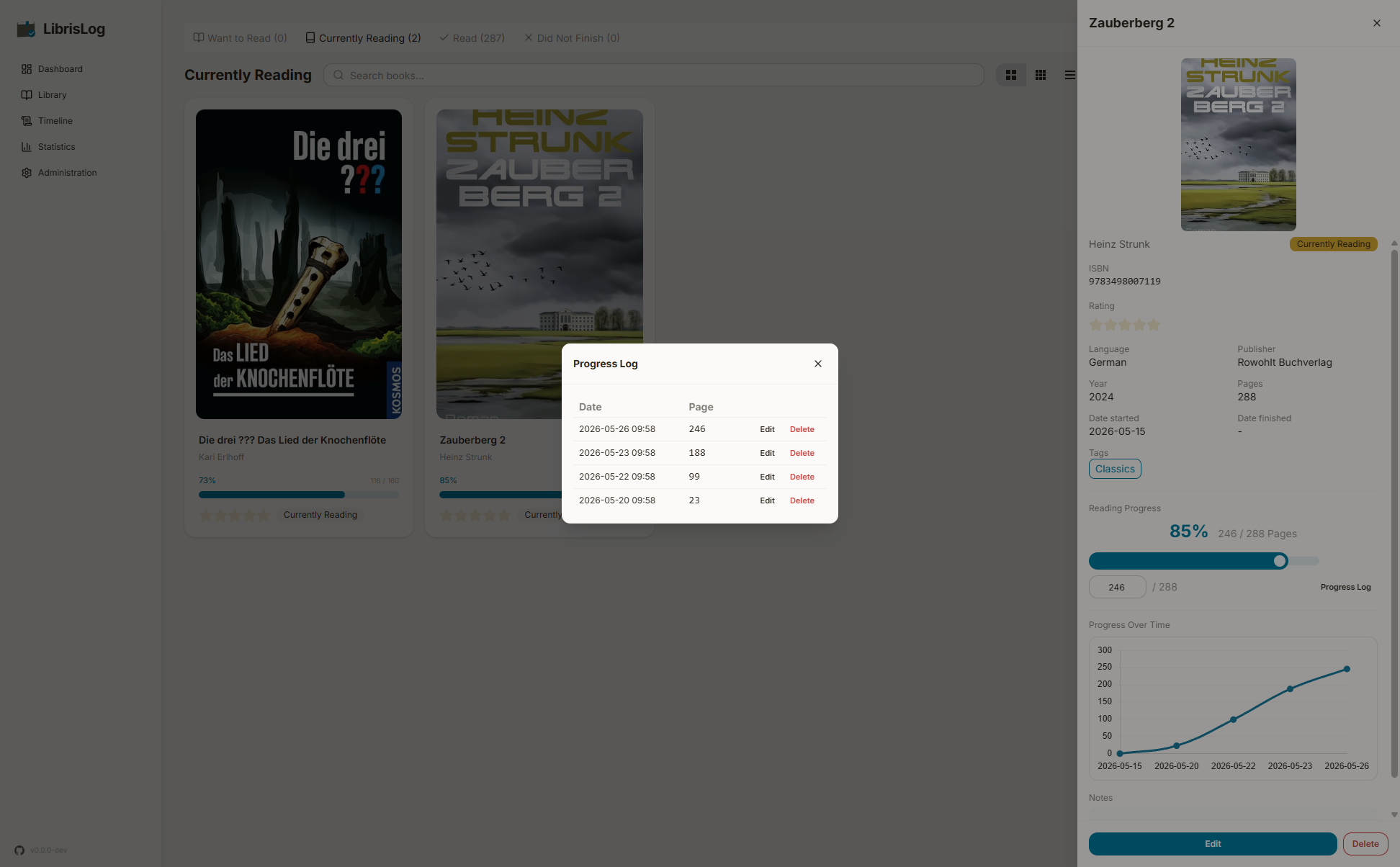
Each book maintains a progress log showing the history of page updates:
- Date and time of each entry
- Page number reached
- Actions to edit or delete individual entries
The log is append-only — each update adds a new entry rather than modifying the previous one.
Editing an Entry
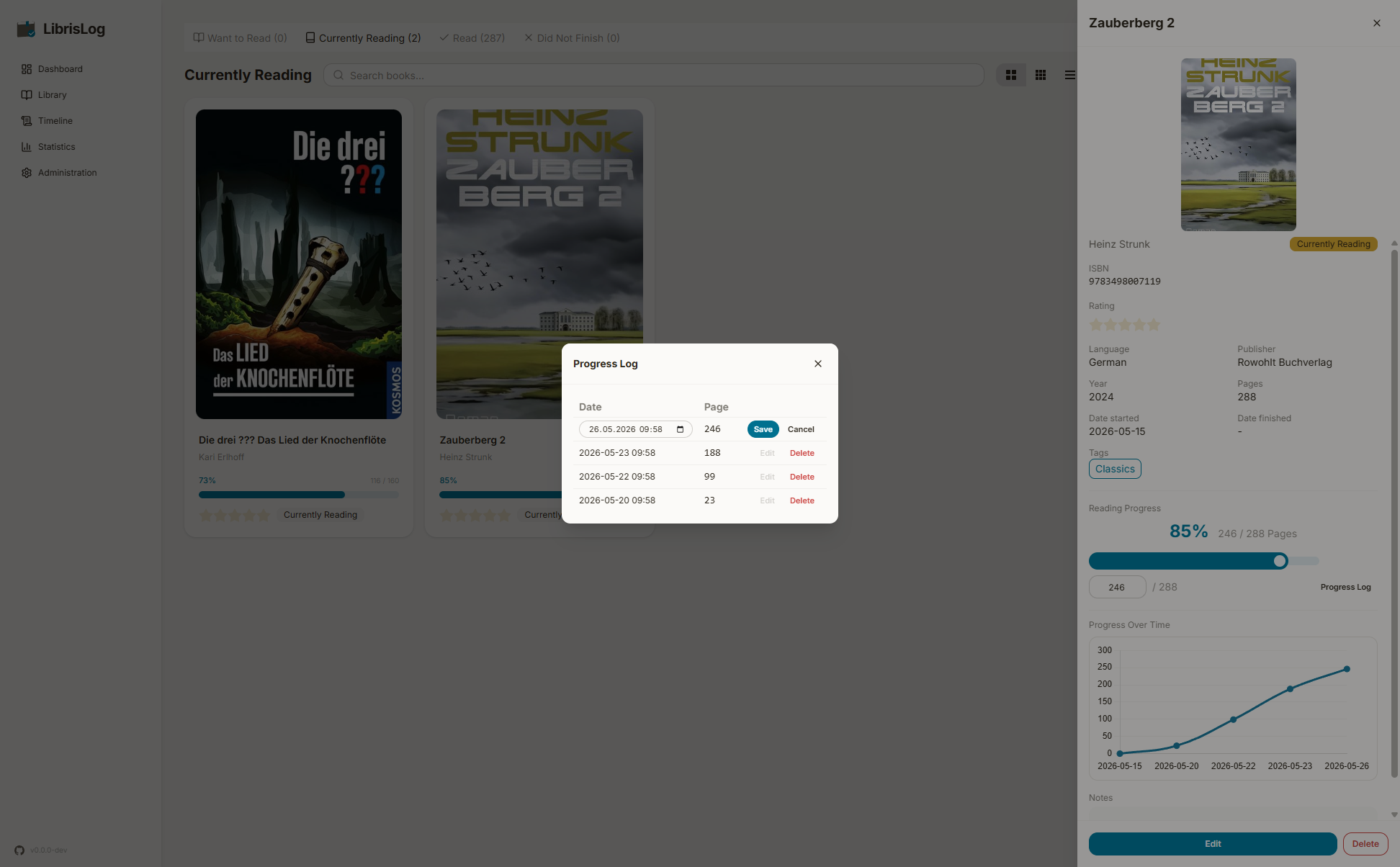
Click the edit button next to a progress log entry to change its date. This is useful if you forgot to log progress on the correct day. The page number cannot be changed — instead, add a new entry with the corrected page.
Deleting an Entry
Click the delete button next to an entry to remove it from the log. A confirmation prompt appears before deletion.
Reading Percentage
For books with a page count, the detail view shows your current page, total pages, reading percentage, and a visual progress bar.